This post is no longer updated. Move to Contact Form 7 official site.
Download | Plugin Homepage | FAQ | Support Forum
Summary
Just another contact form plugin. Simple but flexible.
- Supports multiple contact forms.
- You can customize form and mail contents with simple markup.
- AJAX submitting with jQuery Form Plugin.
- Spam filtering with Akismet.
- Bot prevention with CAPTCHA.
Download and Install
Download the latest release from WordPress.org plugin directory.
- Upload whole contact-form-7 folder to the /wp-content/plugins/ directory
- Activate the plugin through the ‘Plugins’ menu in WordPress
Usage
- Open admin page
[Options] – [Contact Form 7][Manage] – [Contact Form 7].Update: If you are using WordPress 2.7 or greater, you can find the admin page under [Tools] – [Contact Form 7].
- Edit default “Contact form 1” or add new and save it.
- Copy
[contact-form ...]code and paste it into the content of any posts you need the contact form.
FAQ
How to customize form and mail contents
You can use “tags” in several fields. Contact Form 7’s “tag” is formed string enclosed in square brackets [].
A tag used in form content is replaced by HTML form control element like <input> or <textarea>.
A tag used in mail template is replaced by user input of element with the same name.
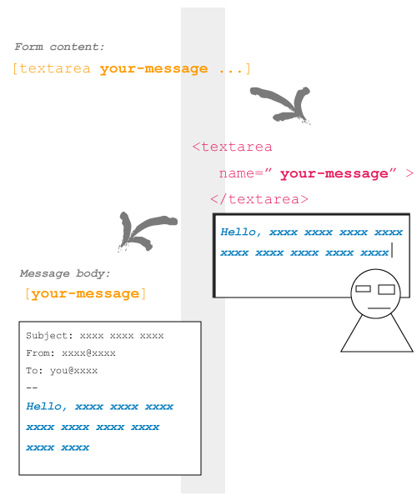
In this picture, a tag [textarea your-message ...] inserted in form content is replaced by <textarea> tag with name="your-message" attribute.
When a visitor input into this <textarea> field and submit, Contact Form 7 generates a mail based on mail template. Since message body field has [your-message] tag, this tag replaced by the user input message.
Tags in form content
You can use the following types of tags in form content.
| Type | Replaced by | Validated as |
|---|---|---|
| text | <input type="text" /> |
Any text |
| text* | <input type="text" /> |
Any text / Required |
<input type="text" /> |
Email address | |
| email* | <input type="text" /> |
Email address / Required |
| textarea | <textarea> </textarea> |
Any text |
| textarea* | <textarea> </textarea> |
Any text / Required |
| select | <select> </select> |
— |
<select> </select> |
— | |
| checkbox | <input type="checkbox" /> ... |
— |
<input type="checkbox" /> ... |
— | |
| radio | <input type="radio" /> ... |
— |
| captchac | <img /> |
CAPTCHA See How to use CAPTCHA |
| captchar | <input type="text" /> |
|
| submit | <input type="submit" /> |
— |
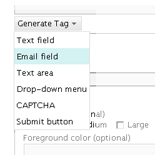
The syntax of tag is not so easy. You can use Generate Tag menu under Form textarea to make a tag you need.
I show you some examples of tags.
[text your-name 40/100 "John Smith"]This tag is replaced with:
<input type="text" name="your-name" size="40" maxlength="100" value="John Smith" />[email* your-email 60/ id:email]<input type="text" name="your-email" id="email" size="60" />[textarea your-message 80x15 "Write message here."]<textarea name="your-message" cols="80" rows="15">Write message here.</textarea>
[select your-country "China" "India" "other"]<select name="your-country"> <option value="China">China</option> <option value="India">India</option> <option value="other">other</option> </select>
I wrote about tag syntax.
How to use Akismet on Contact Form 7
1. You need Akismet plugin. If you have not activated it yet, activate it first.
2. Open Contact Form 7’s admin page and edit Form text area as:
- Add
akismet:authoroption to the tag of field which requires sender’s name.
Example:[text* your-name akismet:author] - Add
akismet:author_emailoption to the tag of field which requires sender’s email address.
Example:[email* your-email akismet:author_email] - Add
akismet:author_urloption to the tag of field which requires sender’s URL.
Example:[text your-url akismet:author_url]
Once you have activated the Akismet plugin and at least one of the akismet: options is set, Contact Form 7 will send all of a sender’s input as well as any other information related to input activity to the Akismet server. Akismet will then judge whether this input is likely to be spam.
When Akismet judges a message as spam, Contact Form 7 sends no mail and shows a response message with an orange border line (the third example in the picture below).
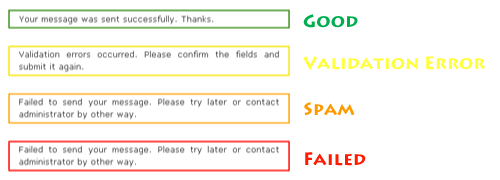
To make sure the spam filtering is working, send a message with “viagra-test-123” as the sender’s name. If the test is a success, the message will be judged as spam.
Changelog
- 0.9 (2007/04/30)
- Initial release.
- 1.0 (2007/05/20)
- Tag helper.
- 1.1 (2007/08/02)
- File restructuring.
- 1.2 (2007/08/16)
- jQuery Form Plugin introduced.
- 1.3 (2007/08/26)
-
New tag type:
[select] - 1.3.1 (2007/08/26)
- Critical bug about JavaScript loading fixed.
- 1.3.2 (2007/09/03)
- Bug fix around jQuery.
- 1.4 (2007/09/07)
- Akismet spam filtering introduced.
- 1.4.1 (2007/09/11)
- Add Spanish and Catalan translations.
- 1.4.2 (2007/09/13)
- Add German translation.
- 1.4.3 (2007/09/15)
- Add Polish translation.
- 1.4.4 (2007/09/17)
- Add French translation.
- 1.5 (2007/10/07)
- CAPTCHA introduced.
- 1.6 (2007/10/17)
- Mail (2) and UI improvement for admin page.
- 1.6.1 (2007/10/27)
- Sidebar widget support.
- 1.7 (2007/11/27)
-
New tag type:
[select+],[checkbox],[checkbox+]and[radio] - 1.7.1 (2007/12/06)
- Made wpcf7 variable global. Polish translation updated.
- 1.7.2 (2007/12/13)
- Bugfix. Czech translation added.
- 1.7.3 (2007/12/23)
- New
default:andlabel-firstoptions added. - 1.7.4 (2007/12/30)
select+andcheckbox+tag types removed.multipleandexclusiveoptions added.- 1.7.5 (2008/01/26)
- Two fixes and
include_blankoption. - 1.7.6 (2008/03/02)
- New
acceptancetag added.

 iDeasilo
Leave a comment